
OneTap Settings
Full Instructions
Master every feature of OneTap Settings for Android.
Getting Started
OneTap Settings is designed to automate your environment transitions. Instead of manually toggling half a dozen settings, you create Routines that apply everything with a single tap or trigger.
The Dashboard
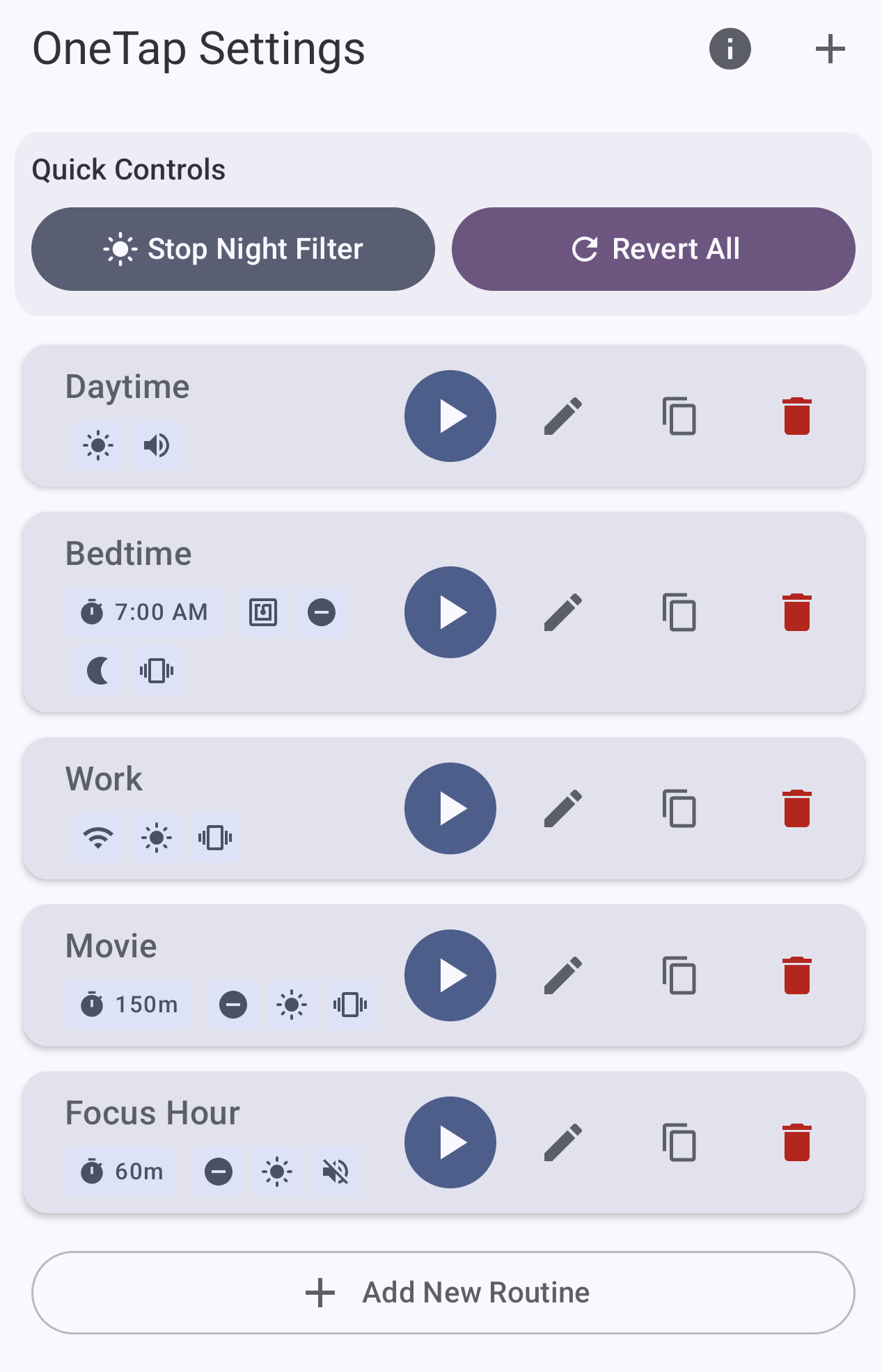
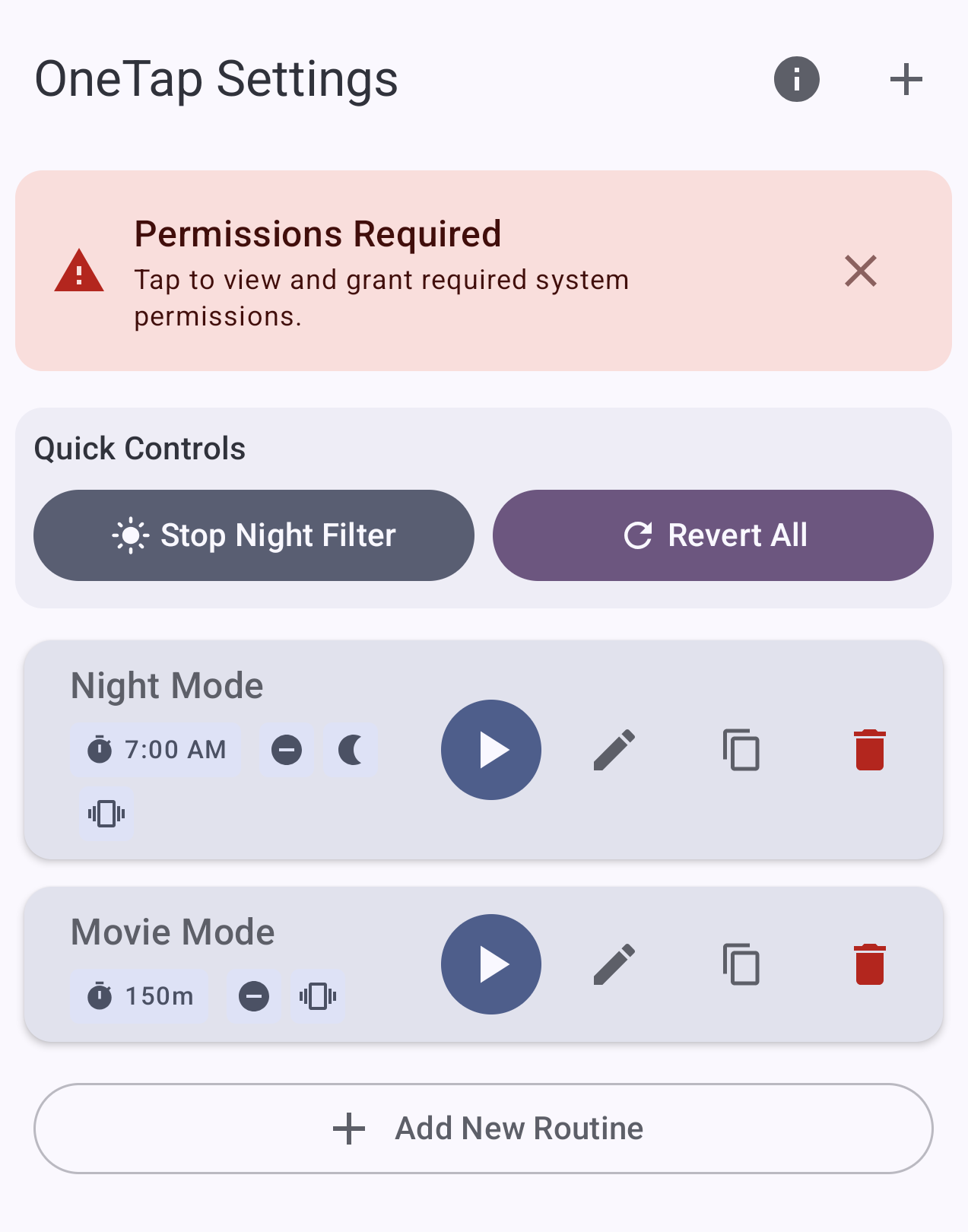
The main screen shows all your configured routines. You can start any routine immediately by clicking the Play Button.
Managing Your Routines
Add: Use the '+' icon in the top right or the button at the bottom.
Edit: Tap the pencil icon on any routine card.
Duplicate: Create a copy of an existing routine to tweak.
Delete: Remove routines you no longer need.
Reorder: Long-press and drag any routine to change its position in the list.
Start Settings
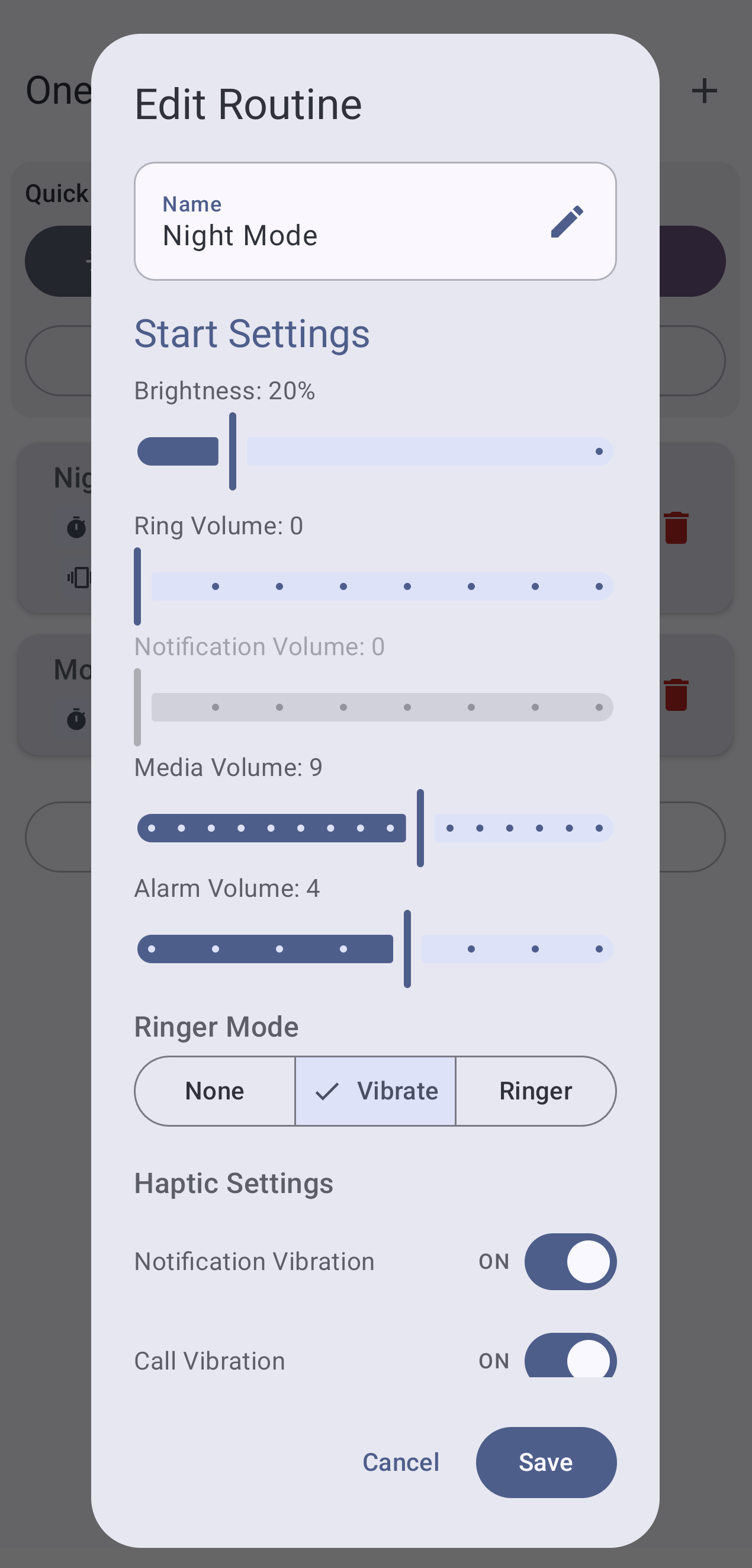
These settings are applied the moment a routine begins.
Brightness & Audio
Set a specific brightness level and control four independent volume streams: Ring, Notification, Media, and Alarm.
Ringer Mode & Haptics
Choose between Normal, Vibrate, or Silent. You can also independently toggle Haptic Feedback for calls and notifications.
Do Not Disturb (DND)
Enable DND to silence distractions. OneTap Settings uses a "Priority" policy that ensures alarms and starred contacts can still reach you in emergencies.
Night Filter
Applies an amber overlay to your screen to reduce blue light. Perfect for winding down at night.
Intelligent Triggers
Automate your life by setting routines to start without even opening the app.
Wi-Fi Triggers
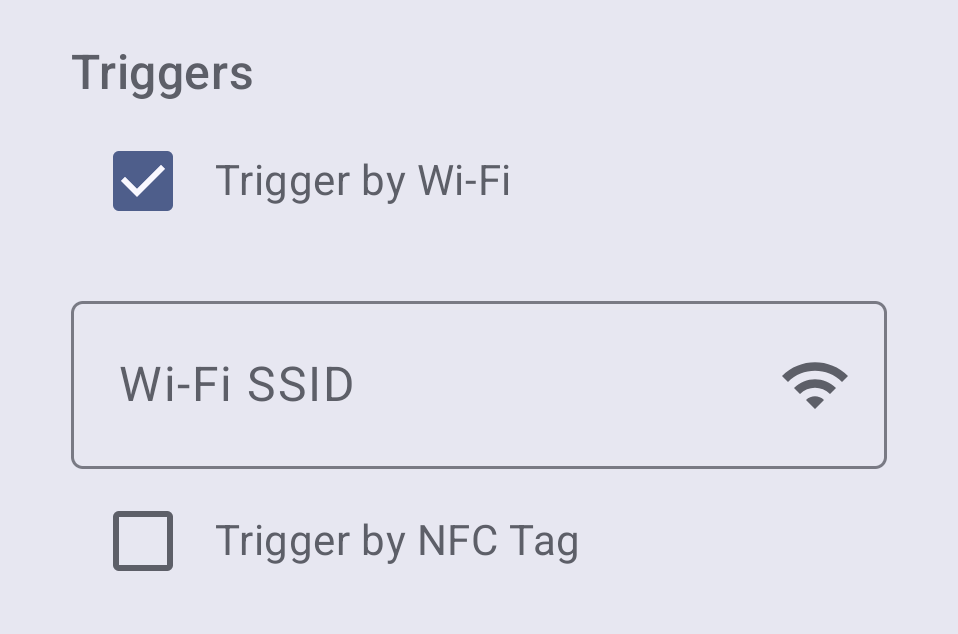
Assign an SSID (network name) to a routine. You can type the name manually, or click the Wi-Fi icon next to the text field to automatically capture the name of the network you are currently connected to. When your phone connects to that Wi-Fi, the routine starts automatically.
NFC Tags
Link a routine to a physical NFC tag. You can enter the tag ID manually, or simply tap a tag against your phone while the edit screen is open to fill it in automatically. Then, just tap your phone against the tag (on your nightstand, desk, or car dock) anytime to activate it.
Homescreen Shortcuts
Pin any routine directly to your phone's home screen for instant access.
End Conditions & Follow-up Actions
What happens when your routine is finished? OneTap Settings gives you total control over the exit strategy.
Alarm vs. Duration
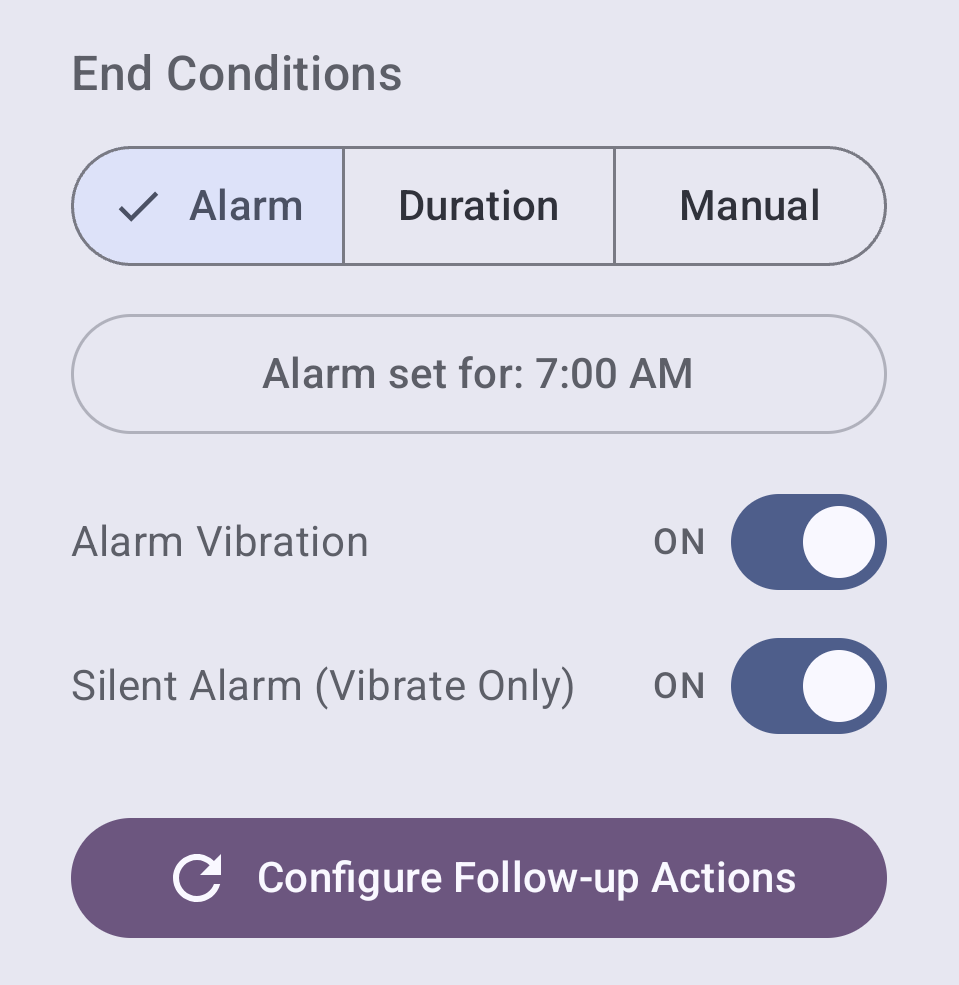
Choose when your routine should end: at a specific Alarm Time (perfect for sleep) or after a set Duration (perfect for movies or focus sessions).
Configure Follow-up Actions
When a routine ends, you can decide exactly how the phone should behave. Use the "Configure Follow-up Actions" button to choose specific brightness, volume, and DND settings to apply upon completion, or select a Next Routine to start automatically.
Routine Chaining (Next Routine)
Instead of just changing settings, you can automatically start a completely different routine.
Example: Your "Sleep" routine ends when you dismiss your alarm, which then triggers your "Morning" routine automatically.
Example: Your "Sleep" routine ends when you dismiss your alarm, which then triggers your "Morning" routine automatically.
System Permissions
To control your phone's hardware, Android requires specific permissions. OneTap Settings only asks for what is strictly necessary. When permissions are missing, you will see a red "Permissions Required" warning banner at the top of your dashboard.
Granting Permissions
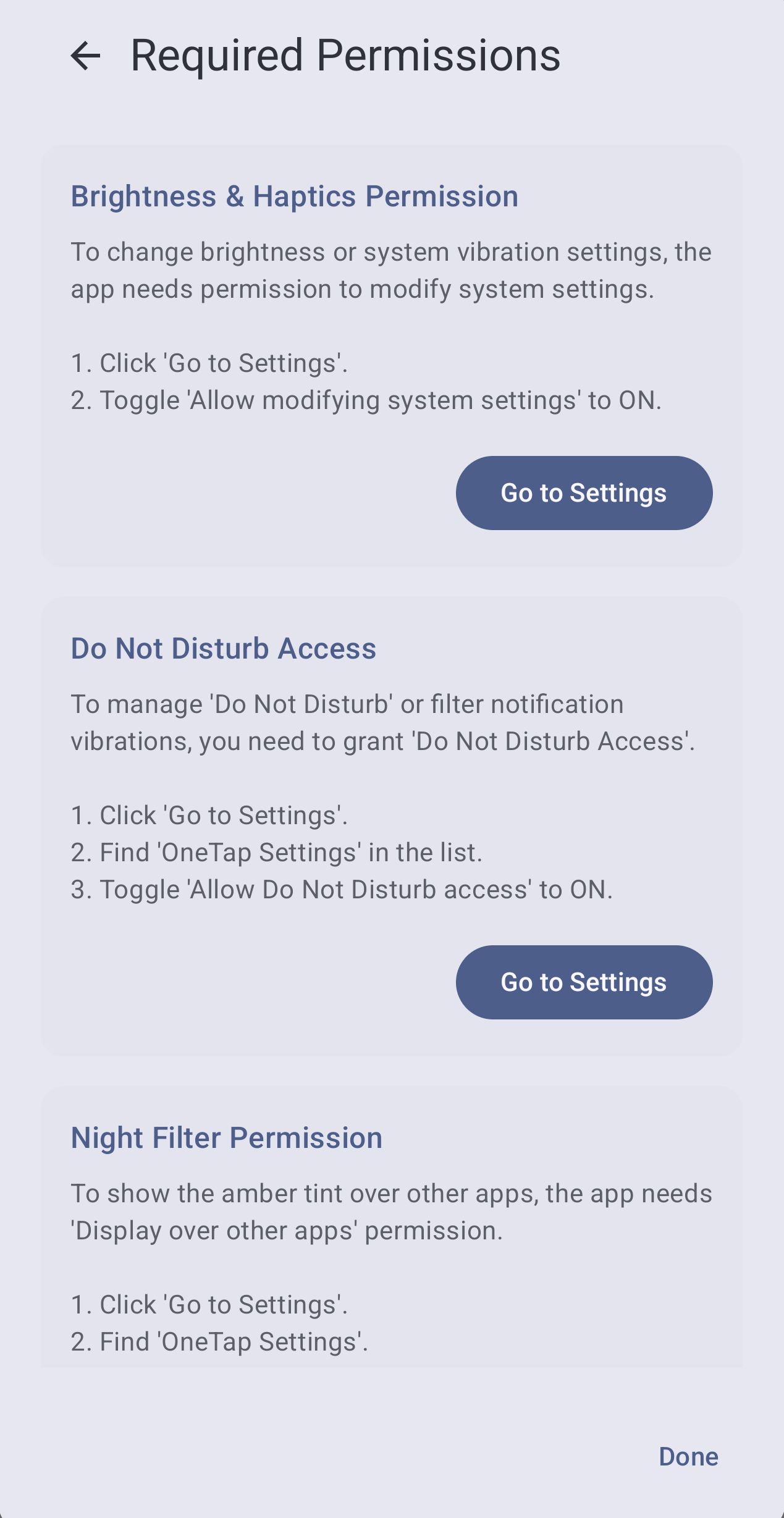
Tap the "Permissions Required" banner to open the System Permissions detail screen. This screen lists every permission needed, along with an explanation of why the app requires it.
Hiding the Permission Reminder
If you choose not to grant certain permissions and want to keep your dashboard clean, you can hide the warning banner by clicking the "X" icon on the right side of the banner.
Restoring the Reminder
If you ever hide the banner but decide you need to grant a permission later, simply scroll to the very bottom of your routine list and tap "Check System Permissions". This will immediately reopen the detail screen.
Required Permissions List
- Write Settings: Required to change Brightness and Ringer modes.
- DND Access: Required to manage Do Not Disturb and filter notification vibrations.
- Overlay: Required for the Night Filter amber tint.
- Exact Alarms: Required to ensure your settings revert precisely when a timer or alarm finishes.
- Location: Required by Android to see Wi-Fi network names (used for triggers).
- NFC: Required to use physical NFC tags as routine triggers.